


Odoo login security often decides whether your ERP stays private or sits exposed. A shared password, an open session or repeated guessing can unlock finance, sales and HR data. Advanced User Security, from MindSpark Technologies, closes that gap with layered login controls you configure in one place.
We built this module and published it on the Odoo Apps Store. It adds password rules, failed-login locking, login captcha, session controls and audit reporting to Odoo Community and Enterprise. You can run it on versions 18.0, 19.0 and 20.0.
Our team also delivers Odoo ERP implementation and support services, so we write from a configuration-first view. This guide shows what the module does, how it sits alongside native Odoo controls and whether it suits your setup. Further down, we link to every outside source we rely on.
What is an Odoo login security module?
An Odoo login security module controls who signs in, how many attempts each user gets and how long a session stays open. It adds rules for passwords, failed attempts, captcha and idle time. Administrators also gain a record of login activity, so they can review access and respond when something looks wrong.
Native Odoo gives you a sound base. However, needs grow as you add users, companies and portal accounts. A dedicated module brings those extra rules together, so you avoid juggling several single-purpose apps.
Why does Odoo login security still matter in 2026?
Credentials remain a major attack route, even as other entry points grow. Layered defences such as lockout, throttling, captcha and monitoring make guessing and misuse harder. They also give administrators the evidence they need to act quickly when an account behaves unusually. That is why login controls still deserve a place in your Odoo plan.
Verizon’s 2026 Data Breach Investigations Report findings name vulnerability exploitation as the leading breach entry point, at 31% of breaches. Notably, exploitation overtook stolen credentials for the first time in the report’s 19 years. In other words, credentials held that top position until this year, so login defences still deserve attention.
The UK National Cyber Security Centre (NCSC) offers practical direction. Its password policy guidance for system owners recommends throttling or account lockout against brute-force attacks. Where you use lockout, it suggests allowing between 5 and 10 login attempts. The NCSC also advises security monitoring for unusual login behaviour.
Importantly, the NCSC does not recommend regular forced password expiry. Instead, it prefers a change when you know or suspect a compromise. That puts lockout, captcha and monitoring at the centre of a sensible login policy.
How does Advanced User Security compare with native Odoo controls?
Odoo already provides a Password Policy module for minimum length, built-in two-factor authentication and device review. Advanced User Security adds a further layer: failed-login locking, captcha, optional expiry, single-device sessions, idle logout, security questions, detailed history and audit dashboards. It complements native controls rather than replacing them.
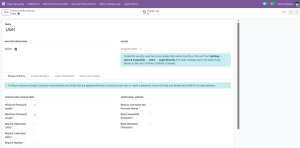
According to the Odoo 20 password management documentation, the Password Policy module (auth_password_policy) lets you set a minimum password length, with a default of 8. Odoo also stores login information, such as IP address, on the user profile. Users then review or revoke their devices under My Preferences → Security.
For a second factor, follow the official Odoo two-factor authentication setup guide. Our module does not include 2FA, so we recommend running both together. The table below summarises how the two layers fit.
| Capability | Native Odoo (official docs) | Advanced User Security (our listing) |
| Password rules | Minimum length via Password Policy (default 8) | Password rules, validity period and change controls |
| Two-factor authentication | Built in | Not included; use Odoo’s native 2FA |
| Failed-login lock | Not covered in the cited pages | Temporary lock after the configured maximum attempts |
| Login captcha | Not covered in the cited pages | Captcha on login; a wrong captcha counts as a failed attempt |
| Password expiry | Not covered in the cited pages | Optional renewal after the configured validity period, with notification |
| Sessions and devices | Users review and revoke their devices | Single-device login, inactivity auto-logout and session tracking |
| Login history and audit | Odoo stores login information, such as IP, on the user profile | History (IP, browser, OS, device, location, duration), dashboard and CRUD audit logs |
| Multi-company and portal | Not covered in the cited pages | Company-wise policies and portal user controls |
What does the Advanced User Security Odoo module include?
The module combines twelve listed capabilities. Access controls cover password rules, expiry, failed-login lock, captcha, single-device login, inactivity logout and security questions. Oversight tools cover login history, session tracking, multi-company policies, portal user security and an audit dashboard. You switch on only what your policy needs.
How do password policy and expiry rules work?
Password policy lets you define secure password rules, validity periods and change controls. The benefit is consistency: every user follows one standard without manual checks. Expiry stays optional. When you enable it, the module forces renewal after the configured period and shows an expiry notification after login.
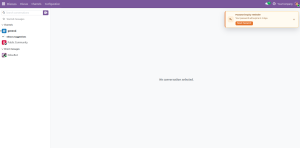
Use expiry thoughtfully. Guidance from the NCSC advises against routine expiry, yet some organizations still require it for internal or contractual reasons. This module lets you apply it only where you need it. Meanwhile, lockout, captcha and monitoring do the heavier lifting.
What happens after failed login attempts?
Once a user reaches the configured maximum of failed attempts, the module temporarily locks the account. The lock policy you set decides when access returns. An incorrect captcha also counts as a failed attempt, so scripted guessing hits the limit sooner. Administrators then see locked accounts in the Locked User Report.
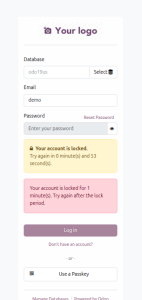
This approach mirrors the NCSC’s lockout advice. For example, you could set a limit within the 5 to 10 attempt range it suggests. Captcha on the login page adds one more check against automated attempts.
How do administrators control sessions and devices?
Single-device login restricts users to one active device or session where you require it. Inactivity auto-logout ends a session after the configured idle time. Together, these controls cut the risk of shared accounts and unattended screens on front desks, shop floors or shared laptops. Administrators then use session tracking to review active sessions, login status and session activity.
How does password recovery work?
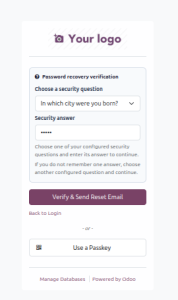
Security questions and answers add a validation step to password recovery and reset. This step helps confirm that the account owner, not someone else, resets the password. It suits teams with frequent resets and limited help-desk time.
What do administrators see in login history and audit logs?
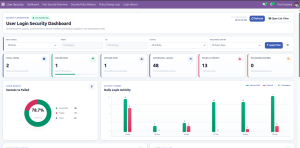
Login history records login and logout time, IP address, browser, operating system, device, location and session duration. Alongside it, the security dashboard brings together login activity, locks, sessions and password events. Audit logs capture important create, update and delete actions. Clear statuses such as Normal, Warning, Locked, Expired, Active, Logged in and Logged out speed up each review.
Does it support multi-company and portal users?
Yes. You assign security policies company-wise, based on each user’s company setup. Portal user security applies the required login and password controls when you create portal users and when they access the system. This suits groups that run several companies, or customer and vendor portals, from one Odoo database.
| Ready to evaluate it? View Advanced User Security on the Odoo 20 Apps Store to check the current price, screenshots and version options. Prefer a walkthrough first? Email odooapps@mindsparktechnologies.com to request a demo. |
How does the Odoo login security workflow run?
Every sign-in passes through six stages: login request, captcha check, credential check, attempt and lock evaluation, session control and audit logging. Each stage applies the policy you configured. The result is a consistent, traceable path from the moment a user opens the login page until the session ends.
- Login request: the user opens the Odoo login page and submits credentials.
- Captcha check: the module validates the captcha and counts a wrong answer as a failed attempt.
- Credential check: Odoo verifies the username and password.
- Attempt / lock: the module counts failed attempts and locks the account at the configured maximum.
- Session control: the module applies single-device, idle logout and password expiry rules to the session.
- Audit log: the module records the event in login history and on the security dashboard.
How do you set up Advanced User Security?
Our listing describes five setup steps. You configure the policy, validate login and captcha, and control failed attempts and locking. Next, you apply password and session rules, then monitor history, sessions and audit. We suggest testing on a staging database first, confirming the rules with a few users, then rolling out company by company.
- Configure Security Policy: define password rules, validity and lock limits for each company.
- Validate Login & Captcha: test the login page with captcha switched on before going live.
- Control Failed Attempts & Locking: set the maximum attempts and lock policy, then check the Locked User Report.
- Apply Password & Session Rules: decide on expiry, single-device login and idle timeout for each user group.
- Monitor History, Sessions & Audit: review the management dashboard and reports on a regular schedule.
Advanced User Security depends on Discuss (mail), and we publish it under the LGPL-3 licence. Install Discuss first if your database does not already use it.
Which security reports does the module provide?
The listing names eight reports covering logins, failures, locks, sessions, password expiry, devices, audit activity and a daily and weekly dashboard where the dashboards major helps to identify the lock patterns, session histories and the trending charts that would require any further decision-making process. Together, they give administrators and auditors a clear record of who accessed Odoo, from where and what changed. They also make a practical starting point for regular access reviews.
- Login History Report
- Failed Login Attempt Report
- Locked User Report
- Active Session Report
- Password Expiry Report
- Device / Browser Login Report
- Security Audit / CRUD Activity Report
- Daily & Weekly Security Dashboard
Who should buy this Odoo user security module?
Advanced User Security suits Odoo administrators, IT and security owners, and implementation partners who need more login control than native settings provide. It fits Community or Enterprise on versions 18.0 to 20.0, especially on Odoo.sh or on-premise. Teams get password, lock, session and audit rules in one place.
Illustrative scenarios (examples of fit, not customer results):
- A distributor with shared warehouse terminals uses single-device login and idle logout, so unattended sessions close.
- A group with several companies applies stricter password rules to one company’s finance users.
- A business with a supplier portal applies login and password controls to portal users.
- An implementation partner preparing a client for an internal review uses login history and CRUD audit reports as evidence.
Still weighing up your ERP platform? Our comparison of Odoo and SAP for scaling small and mid-sized businesses may help before you choose add-on modules.
What does Advanced User Security cost, and what support do you get?
On 11 November 2026, the Odoo 20.0 Apps Store listing showed a price of $144.64. Each purchase includes free support for 90 days from the purchase date, covering installation assistance, configuration guidance, bug fixes and functional support. Prices can change, so check the listing before you buy.
| Item | Detail |
| Publisher | MindSpark Technologies |
| Technical name | mst_advanced_user_security |
| Odoo versions | 18.0, 19.0 and 20.0 |
| Editions | Community and Enterprise |
| Availability (listing header) | Odoo.sh and On Premise |
| Dependency | Discuss (mail) |
| Licence | LGPL-3 |
| Price (20.0 listing, checked 11 November 2026) | $144.64 |
| Free support | 90 days from purchase: installation assistance, configuration guidance, bug fixes and functional support |
Beyond the free support period, we also offer customisation, feature enhancements, third-party integrations, migration and integration with an existing Odoo system. Applicable terms and conditions govern these services.
Frequently asked questions about buying Advanced User Security
Does Advanced User Security include two-factor authentication?
No. Two-factor authentication is not among this module’s listed features, but Odoo provides native 2FA, which you can enable alongside Advanced User Security. When you use both, 2FA adds a second factor, while this module handles password rules, captcha, lockout, sessions and audit history. That pairing gives you layered protection without overlap.
Which Odoo versions and editions does it support?
We list the module for Odoo 18.0, 19.0 and 20.0, on both Community and Enterprise editions. Its listing header shows availability on Odoo.sh and On Premise. Before buying, open the listing for your exact version and confirm that it matches your hosting set-up. Our team can also confirm compatibility by email.
Can I use password expiry and still follow current guidance?
Yes, because expiry is optional and configurable. The NCSC advises against routine expiry, so many teams may prefer to leave it off and rely on lockout, captcha and monitoring. If your internal or contractual policy requires renewal, you set a validity period, and users see a notification after login.
Can administrators see who is online and from which device?
Yes. Session tracking shows active sessions, login status and session activity. Login history adds login and logout time, IP address, browser, operating system, device, location and session duration. The Active Session Report and Device / Browser Login Report then present this information, so administrators can review it quickly.
What does the 90 days of free support cover?
Free support runs for 90 days from the module purchase date. It covers installation assistance, configuration guidance, bug fixes and functional support for the purchased module. We offer customisation, feature enhancements, integrations and migration separately, under applicable terms and conditions. Email us with your version details to get started.
Related reading from our Odoo team
- How Odoo compares with WordPress for business websites and operations
- How Odoo ERP systems streamline business processes in Dubai and the UAE
Key takeaways: is Advanced User Security right for you?
- Native Odoo covers minimum password length, 2FA and device review; Advanced User Security adds lock, captcha, session, expiry and audit controls.
- Lockout, captcha and monitoring align closely with NCSC guidance, while password expiry stays optional.
- One module handles multi-company policies and portal users, with eight security reports.
- It supports Community and Enterprise on 18.0, 19.0 and 20.0, with 90 days of free support.
| Ready to strengthen Odoo login security? Buy or review Advanced User Security for Odoo 20 on the Odoo Apps Store. To request a demo, email odooapps@mindsparktechnologies.com or call USA +1 407 574 8760. |
